Requirements
- DarkMatter version 4.2.0 or greater.
- Android project setup in the Firebase.
- iOS push certificate generated from the Apple Developer site.
- Each supported platform should have it’s certificates setup in the hope dashboard. See the How to register an app documentation for more details.
- Android will require the google-service.json file download from the Firebase Dashboard
Purpose
The Push service will manage platform specific push tokens and keep them synced with the remote v5 service. The service currently only supports external app notifications and app launches. Launches with additional data are not supported in this version of the service.
SNS
v5 uses Amazon SNS to send push notifications to mobile devices. In particular it uses the Mobile Push feature of SNS.
In order to send a push notification through SNS you must create a Platform Application object and use it to create a Platform Endpoint object by registering a user’s push token obtained from the native device push services. Once you have a platform endpoint for a user you can use it to send to send that user a push notification.
How to register an app
In order for v5 to be able to send a push notification to an app it must be registered by sending the push credentials for the app to v5.
This is done on the Admin/Push page on Hope.
Registering a new app
The Admin/Push page on Hope displays the list of currently registered apps for the chosen environment.
To add a new application click the Create Platform Application button. This will show a dialog that allows you to select a game, platform, and environment to upload credentials for. The credentials section is different for each platform.
iOS
Note: For iOS the app is always created in the production APNS environment. This is to ensure push will work for TestFlight builds, however this means that push will not work for development signed builds.
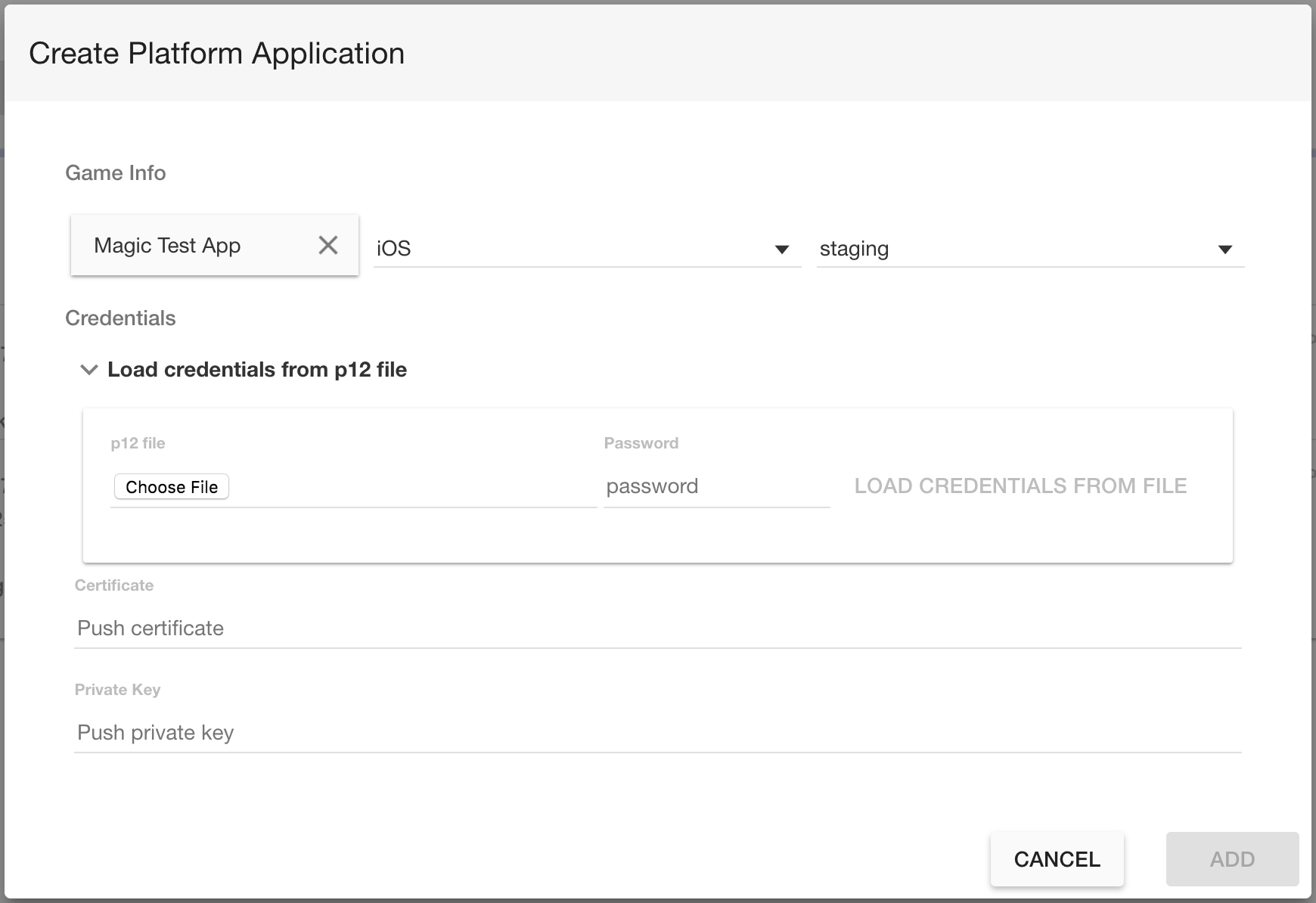
For iOS you need to supply the push certificate and private key.
The format for these is very specific and needs to include newlines in the correct places or creating the app will fail.
The following is an example of the correct format. Note that there is a newline after the last line.
-----BEGIN CERTIFICATE-----
MIIFsTCCBJmgAwIBAgIIMir+ms1OyAwwDQYJKoZIhvcNAQEFBQAwgZYxCzAJBgNVBAYTAlVTMRMwEQYDVQQKDApBcHBsZSBJbmMuMSwwKgYDVQQLDCNBcHBsZSBXb3JsZHdpZGUgRGV2ZWxvcGVyIFJlbGF0aW9uczFEMEIGA1UEAww7QXBwbGUgV29ybGR3aWRlIERldmVsb3BlciBSZWxhdGlvbnMgQ2VydGlmaWNhdGlvbiBBdXRob3JpdHkwHhcN..........UAA4IBAQCi95tYQt3yF2hIqODHZrbNXoy/2DLnDjYdmrhc3zTP6FIFRAMS1C7a1v9PYjTD+TJV48Da8f4H/vaJbBgR/wjTHQPjrNrsC3694iTZsIz+yrzQ0Jr38jsR6yoqMl2O3doqeSdB8NrM1AzzeLs8A5qYO6beofXOB5wi9vrzdaYY0XlSfexGy39OwOfUrWsEczyoj+OTAudaw82QmuTnFoysmfGYLq0Or0bxiM1sg5dMEChUCv7kYWPlYcHKLFqr1xZR4xR6LHshQV46zivLwqsEk9/FM82MoB/5kkChCQLiojGLBgK4UcEfTSCOGVXIdGC25jfcOCOowj6EC1dT3p6R
-----END CERTIFICATE-----
-----BEGIN PRIVATE KEY-----
MIIEvQIBADANBgkqhkiG9w0BAQEFAASCBKcwggSjAgEAAoIBAQC+vc1dzmNzieacAaBlDcjWWwIGwQeETTS3RaNPYMfMhVdX5jxrlY+1jRhvyOg3BsxElpqw6znwn2CmjJNaVF+xaGqvtE1/qexZ93JtNIIagBh5+lG13Nv6aSSnuO8K.........4QxCukx/FSore3IMkkadXM1HXN3D3HuaguNMSb15NuC2cqF2Ty+ABt1WFLcXH0TZ2+GkjQcc6gVCB0RgqHMaJShv+m4tCdTShpQ3PwKZm719cf45JiZSquFqNRLkH+a59M57ZKjVlpAoGABhlLJYbeh6Glx/e88EiTInkLxJMBoK1r9QgqG80cvgT0ms3HMYXYCPwVvxjgzcOuQiBrzhi5az3CRAy2x5buxZ/H5ZSWelQyEMn1vNw0as5sh6uI7rrm9+Gu8OZ7kVV9XXNdZdlyrXcCdX3X63fkj7SDvI8O0qeyEoGI50YDvg0CgYEApeGyYVQeSHViI+xC4kjabHXGhFPX4yxSKzNXLGRLEBzvs9XtwkldvM9Af9Yry0Wer5/sNo1TG63FvUj1MMY6JTaHY4sM/U+/WGGf9F5UpZW8jWVCjaP1GGlJbPGrTQYzkvvYHzgLKQKf/bVnb8p1u5ONrXrN4Qj1YNYbOglzTCM=
-----END PRIVATE KEY-----
To obtain these values you can perform the following steps.
Obtaining the certificate
- Log in to the Apple Developer portal and select Certificates, IDs & Profiles
- Find the apns certificate you created for the app and download the .cer file
- Import the certificate into Keychain Access on the mac that created the certificate
- Open Keychain Access, select Keys, and highlight the private key for your app
- Click File, click Export Items…, and save the .p12 file
- You can then upload the p12 file to Hope and have it extract the credentials for you using the “Load credentisl from p12 file” section of the dialog.
Or you can also extract the credentials manually with the following steps.
- Convert the .p12 file to .pem by executing the following command in a terminal window
openssl pkcs12 -in Certificates.p12 -out Certificates.pem -nodes -clcerts - Open the resulting .pem file in a text editor and you can find the certificate and key
Android
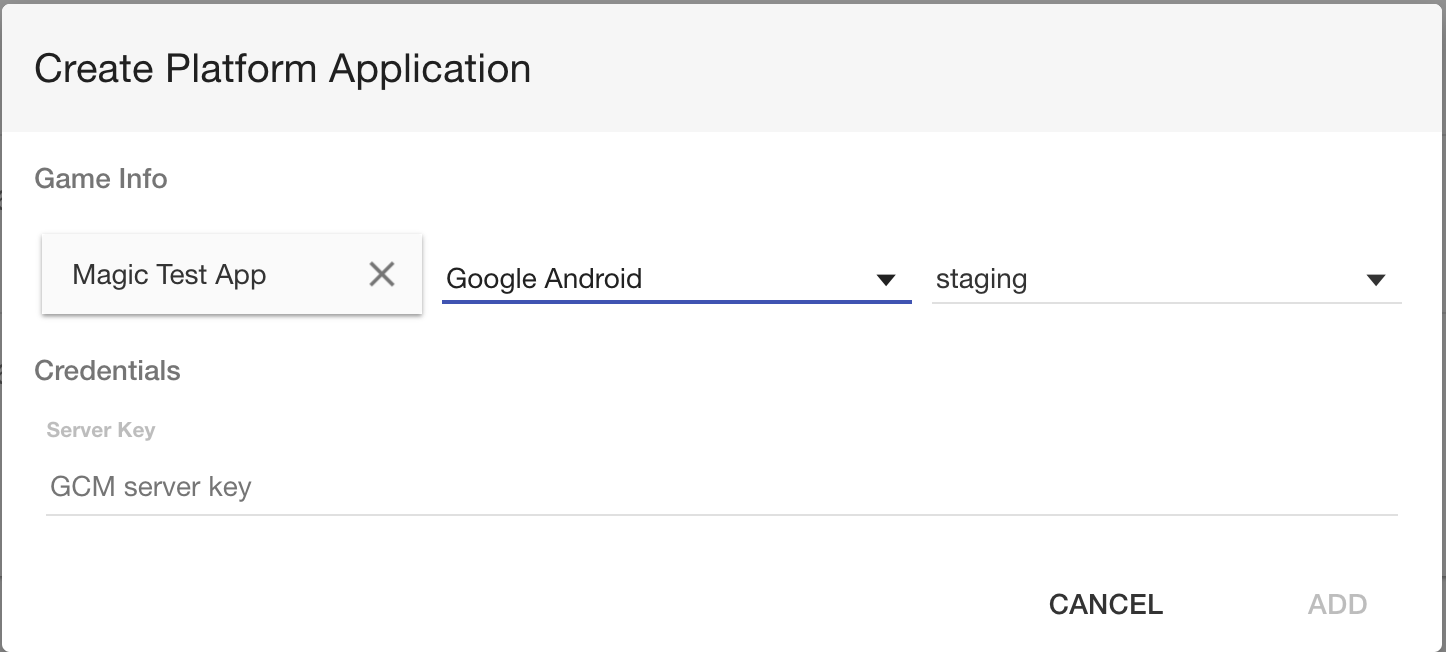
For Android the GCM/FCM server key is required. This is obtained from your Firebase project console in Settings -> Cloud Messaging.
Updating the push credentials
If you need to update the credentials for an app you can do so by using the Update Credentials button on the row for the app on the Admin/Push page on Hope.
This will show a dialog asking for the new certificate/private key for iOS or the new server key for Android.
Deleting an app
To delete an app use the Delete button on the row for the app on the Admin/Push page on Hope.
This should only be used if you are sure the app is no longer needed, any endpoints registered for the app will be lost.
Sending a push
Sending push notifications in v5 is done through the existing message system.
In order to send a push you send a message to the user and add a push_data parameter to the body of the request. If the push data is in the request it will trigger a push when the message is processed.
Previously the send message endpoint required either message data or action to be defined or an error would be returned. Now it is valid to send a message with no data or action as long as push data is provided, this will result in only a push being sent to the user and nothing will be stored in dynamo for the message.
When processing a message we check if it continas push_data and if it does we use that data to publish a push to all SNS endpoints associated with the user for that api key. The push is published when processing messages from the SQS queue and if the message also contains regular message data the push will not be sent until after the message is successfully written to dynamo.
Sending a push from Hope
You can send a simple push to a user through hope on the support page. Search for a user and go to the messages tab. If you expand any game there will be an option to send a push.
Note: The option to send a push will only be visible if that user has at least one push token registered for that game.
Push data format
The push_data that is added to a message accepts the following parameters:
{
  title: "...",
  message: "...",
  title_loc_key: "...",
  message_loc_key: "...",
  title_loc_args: ["..."],
  message_loc_args: ["..."],
  badge: 1,
  sound: "...",
  icon: "..."
}
title- optional- the title for the notification
- takes precedence over
title_loc_key
message- required- the message body for the notification
- for iOS and Android this will not be used if
message_loc_keyis provided but is still required for the “default” platform
title_loc_key- optional- localization key for the title
- if the key is not defined in the app this will have platform specific behaviour, on iOS the key will be displayed as the title and on Android the title will be blank
message_loc_key- optional- localization key for the message body
- if the key is not defined in the app this will have platform specific behaviour, on iOS the key will be displayed as the message body and on Android the message body will be blank
title_loc_args- optional- array of string values to appear in the place of format specifiers present in the string defined by
title_loc_key
- array of string values to appear in the place of format specifiers present in the string defined by
message_loc_args- optional- array of string values to appear in the place of format specifiers present in the string defined by
message_loc_key
- array of string values to appear in the place of format specifiers present in the string defined by
badge- optional- (iOS only) the badge count to display on the app icon, 0 to remove the badge
sound- optional- the sound to play with the notification
- iOS: the sound should be located in the app’s main bundle or the
Library/Soundsfolder of the app’s data container - Android: the sound should be located in
/res/raw - defaults to “default” if omitted
- sound will only be played if the user’s device settings allow it
icon- optional- (Android only) the icon to display on the notification
v5 endpoints
Register a user push token
Creates an SNS endpoint with the given skuid and push token and saves the push token and endpoint in the devices table of the ids database. Optionally removes the token for the old user id.
URL : /:user_id/:skuid/token/update
Method : POST
Data :
- url params
user_idskuid
- headers
mcs-keymcs-install-id
- body
user_tokenuser_idpush_tokenold_user_id- optional - if provided any push tokens for this user id will be removed for the given install id and api key.
Success Response
{
  "endpointArn": endpointArn
}
Error Responses
50001 Unknown server error
Unregister a user push token
Removes any push tokens and endpoints in the devices table associated with the given user id, api key, and install id.
URL : /:user_id/:skuid/token/remove
Method : POST
Data :
- url params
user_idskuid
- headers
mcs-keymcs-install-id
- body
user_tokenuser_id
Success Response
{
  "success": true
}
Error Responses
50001 Unknown server error
v5 Admin endpoints
Determine if a user has a push token registered
Checks if the given user has at least one push token registered for the given game.
URL : /:user_id/hastoken
Method : GET
Data :
- url params
user_id
- headers
mcs-key
Success Response
{
  "hasToken" : true
}
Error Responses
50001 Unknown server error
List platform applications
Returns a list of all games that have an SNS platform application registered for this environment.
URL : /apps
Method : GET
Data :
Success Response
{
  "gamedata": {
    "skuid": skuid,
    "gametitle": gametitle,
    "platform": platform,
    "pnresource": pnresource
  },
  "attributes": {
    "AppleCertificateExpirationDate": date
  }
}
Note: AppleCertificateExpirationDate will only be present for iOS applications.
Error Responses
50001 Unknown server error
Register app
Registers an app for push by creating a platform application object in SNS and storing the ARN in the gameskus table of the ids database.
URL : /:skuid/app
Method : POST
Data :
- url params
skuid
- body
platform_credentials- iOS
{ certificate: "...", key: "..." } - Android
{ key: "..." }
- iOS
Success Response
{
  "platformApplicationArn": platformApplicationArn
}
Error Responses
50001 Unknown server error
Update app credentials
Updates the credentials for the SNS platform application for the given skuid.
URL : /:skuid/app/update
Method : POST
Data :
- url params
skuid
- body
user_tokenuser_id
Success Response
{
  "success": true
}
Error Responses
40002 invalid input- “Missing platform_credentials in request body.”
50001 Unknown server error
Delete app
Deletes the SNS platform application for the given skuid and removes the ARN from the database.
URL : /:skuid/app/delete
Method : POST
Data :
- url params
skuid
Success Response
{
  "success": true
}
Error Responses
50001 Unknown server error