Categories
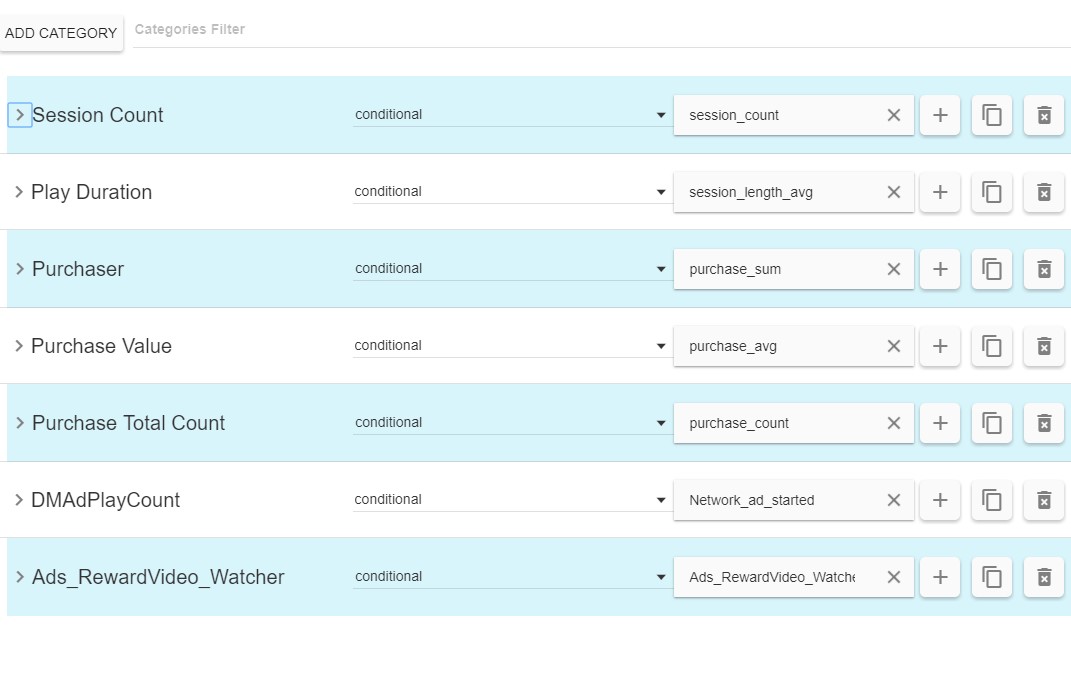
Categories are used to evaluate and categorize Action data. An example would be taking an Action who’s value is the session length and using it to determine what kind of gameplay sessions the user plays. Categories will then be used by Usertypes to evaluate if a user is that type.
Category Data
The Category data will connect to an Action value.

- Details arrow: Changes the current view setting for the Category, clicking will toggle the current state.
- Condensed: Will show only the high-level category properties.
- Detailed: Will show the current subcategory breakdown.
- ID: A unique identifier that will be used to link this Category to the other parts of Prism
- Type: The way the Action value will be processed.
- Conditional: Evaluate the value based on integer grouping of the value.
- Bool: Evaluate the value based on if it exists or not.
- Highest: Evaluate multiple actions and groups based on which actions value is the highest.
- Action: The action to reference by the Category
- Only present if type is Conditional or Bool
- Percentage Delta: The percentage difference between the values of all the actions that will evaluate the same level.
- An example is if two actions values are within the Percentage Delta range then the category will be true for both of those actions.
- Only present if type is Highest.
- Add a subcategory: The plus button will add a subcategory to the action.
- Not present when type is Bool
- Copy: Copy of a Category, a new unique Id will be required.
- Delete: Delete a Category.
Category Details
Some of the details of a Category will change depending on the type set.
- Usertypes.is: A reference to all the Usertypes who reference this category in the Usertypes.is section.
- Usertypes.not: A reference to all the Usertypes who reference this category in the Usertypes.not section.
- Metadata: The metadata tags associated with this action. Metadata is used by the Prism dashboard to help filter and group data elements.
- The tags field will filter and autocomplete based on previous tags used in the Prism data.
- To create a new tag enter the tag string you’d like and hit enter. This tag will be added to the autocomplete list and can be selected from other data elements.
- Type: Conditional
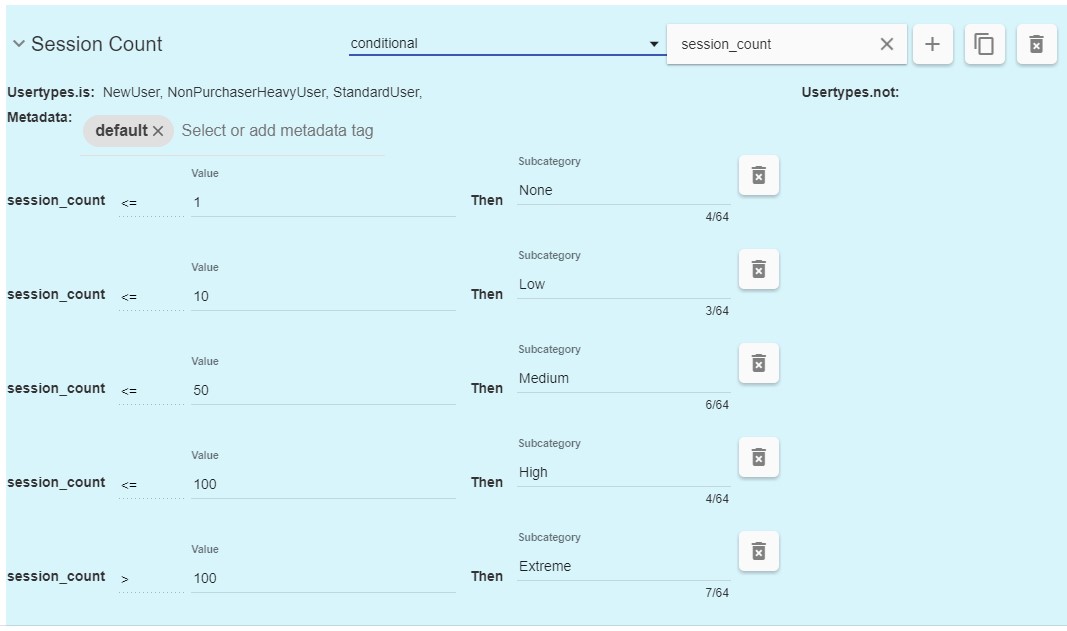
- Value: The value that should be less than or equal to.
- The last value will be added automatically to catch everything above the last entered value.
- Subcategory: The subcategory name for this grouping of the action. this will get appended to the category name when selecting from the Usertypes view.
- Delete: The trashcan icon will delete a subcategory.
- Value: The value that should be less than or equal to.
- Type: Highest
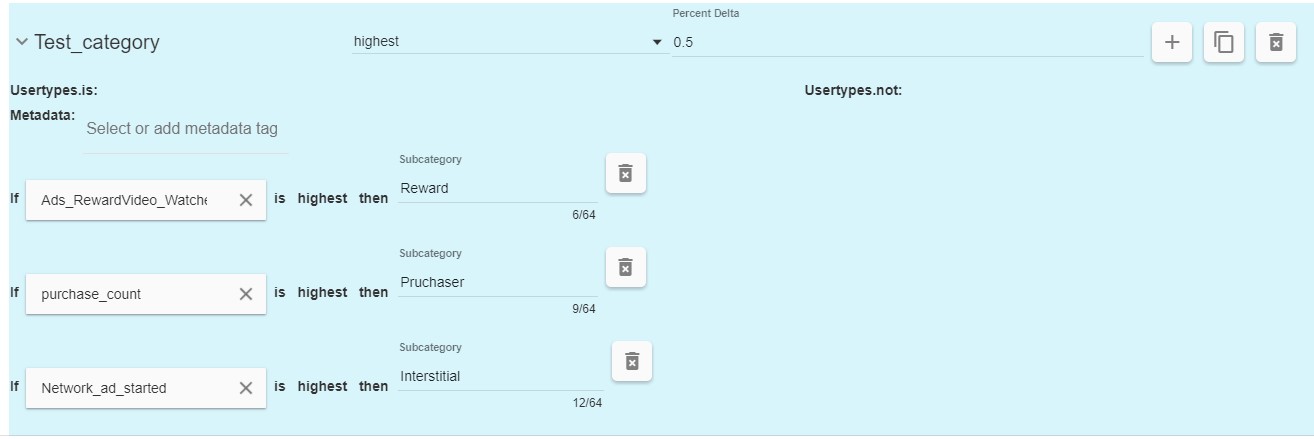
- Action: The action reference.
- Subcategory: The subcategory name for this grouping of the action. this will get appended to the category name when selecting from the Usertypes view.
- Delete: The trashcan icon will delete a subcategory.
- Type: Bool
- The details will be disabled for a boolean type as there are no subcategories.