Actions
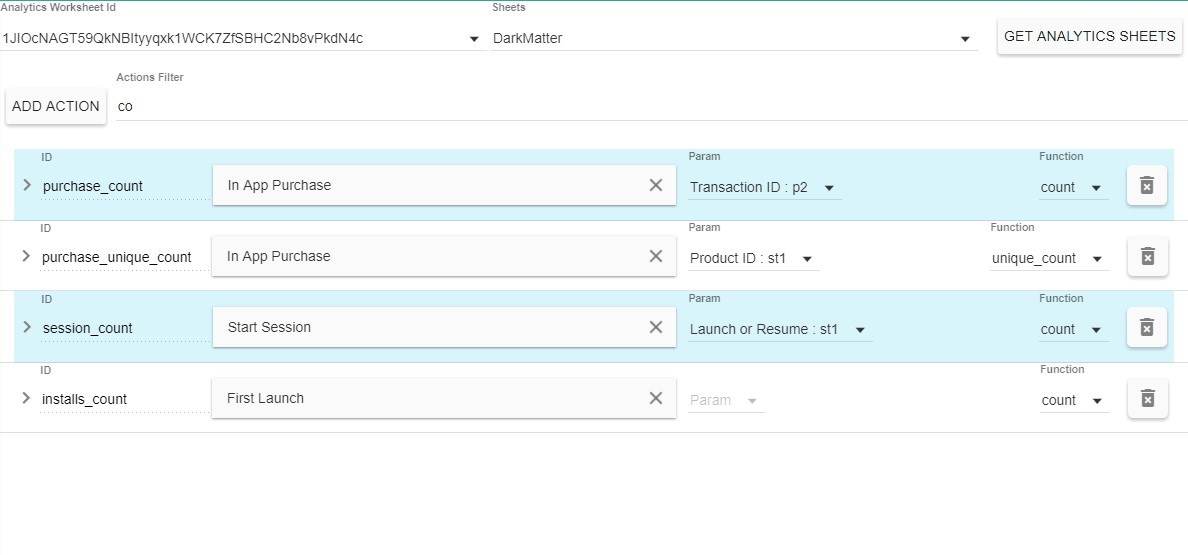
The analytics data that Prism uses to determine a users usertypes is pulled from the magic-etl database. The purpose of an Action is to process this analytics data so that it can be used by Prism to categorize each user. The raw action data gets imported from a Google sheet that conforms to the DarkMatter analytics template. When the worksheet data has been imported an analytic row is selected and then processed based on the action properties.
Analytics Data
To get analytics data to work with you need to:
- Choose a worksheet id from the worksheets id drop down
- Select which pages of the worksheet to import into Prism. You can select multiple pages to import.
- Click the “Get Analytics Sheets” button to import the data from the worksheet and pages selected.
Action Data
An Action contains all the data needed to process an analytic for use by Prism.

- Details arrow: Changes the current view setting for the Action, clicking will toggle the current state.
- Condensed: Will show only the high-level action properties.
- Detailed: Will show subaction properties and filters.
- ID: A unique identifier that will be used to link this action to the other parts of Prism
- Filter: If there are filters applied to the action the filter icon will display with a number indicating how many filters are applied.
- Event Name: The analytic row to associate the action too.
- The field is an autocomplete box that will filter all the loaded analytics based on the “name” column in the analytics sheet.
- The sub-element of the autocomplete field will display what sheet the analytics is from as well as the n and description values from the analytic row.
- When an analytic row is selected the field will display the value of the “name” column in the analytics sheet.
- Param: The column of the analytic row whose value will be processed for the action.
- The params that can be selected are from rows: s1, s2, s3, v, p1 - p10.
- The params will display the [value of param cell] : [column name], eg ( Ad Network : st1 )
- Only columns with values for the analytic row will be displayed.
- Function: How the action will collect analytics data related to the selected event. This will affect the generated value of the action that will be evaluated by categories
- count: The total number of the events.
- unique_count: The total number of events with unique param values.
- sum: The total value of all the event param values.
- min: The smallest value of all the event param values.
- max: The highest value of all the event param values.
- avg: The average value of all the event param values.
- days_since_last: The number of days since the last time the event has happened
- current: The param value of the most recent event
| name | v | ts |
|---|---|---|
| event_a | 10 | 10 Days ago |
| event_a | 2 | 7 Days ago |
| event_a | 25 | 5 Days ago |
| event_a | 5 | 4 Days ago |
| event_a | 1 | 3 Days ago |
| function | value |
|---|---|
| count | 5 |
| unique_count | 3 |
| sum | 43 |
| min | 1 |
| max | 25 |
| avg | 8.6 |
| days_since_last | 3 days |
| current | 1 |
- Delete Action: to delete an action click the trashcan icon at the far right of the action row.
Action Details
An Action can be expanded to see more information about it as well as add filters that will effect the final value of the action. To expand an action click the arrow on the left-hand side of the action.
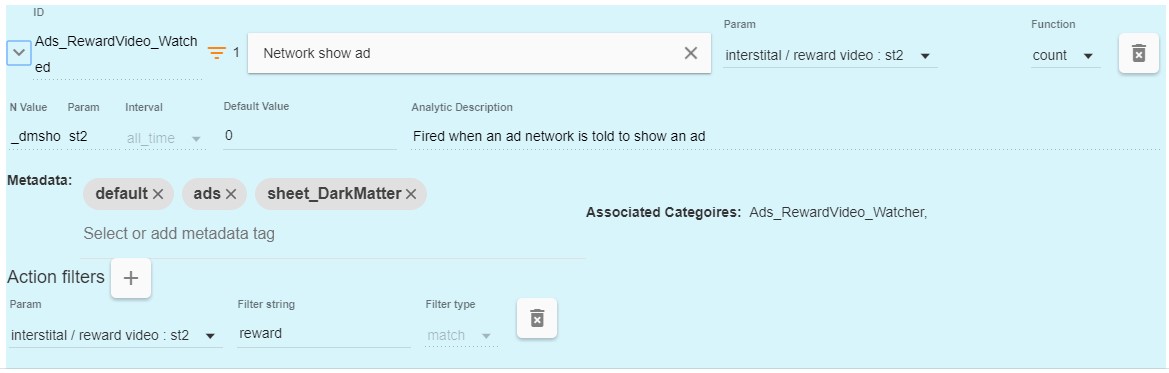
- N value: A reference to the n value of the analytic row
- Param: A reference to the param column name of the analytic row
- Interval: The time interval used to determine which entries of the analytic event should be used when processing the value of the action
- all_time: Use all the events that have been entered.
- Default Value: The default value of the action if no events for this action are found for a user.
- Analytic Description: The value of the description cell for the analytics row in the analytics sheet.
- Metadata: The metadata tags associated with this action. Metadata is used by the Prism dashboard to help filter and group data elements.
- The tags field will filter and autocomplete based on previous tags used in the Prism data.
- To create a new tag enter the tag string you’d like and hit enter. This tag will be added to the autocomplete list and can be selected from other data elements.
- Tags currently don’t affect the generation of prism data.
- Associated Categories: A list of all categories that reference this action.
Action Filters
- Action Filters: Lets you apply a filter to the analytic data before processing the action. This gives you more control of what the final action value represents. Multiple filters can be applied to an action.
- NOTE: Currently only params that are string values can be used by filters.
- Add Filter: To add a filter click the plus button next to the Filter title.
- Param: The column of the analytic row whoes value will be processed for the filter
- The params that can be selected are from rows: s1, s2, s3, v, p1 - p10.
- The params will display the [value of param cell] : [column name], eg ( Ad Network : st1 )
- Only columns with values for the analytic row will be displayed.
- Filter String: The string that will be compared with the param value for the event. If it matches the filter this event will be included in the event collection when processing the final action value.
- Delete Filter: to delete a filter click the trashcan icon at the far right of the action row.
- Param: The column of the analytic row whoes value will be processed for the filter